Read the topics, tasks, questions, signals, and judged outcomes from Assistant Cloud analysis.
Intelligence turns analysed conversations into a view of what people ask for and where the assistant falls short. It is a reading page: choose the range, inspect the evidence, then follow any figure into the matching Threads list. Configure the worker, provider, and classifier rules in Intelligence settings.
What the page answers
The page opens on the last 28 days. Its header identifies the conversations covered by that range and the most recent analysis run, so compare a figure only with the coverage shown beside it. The date range stays with every drilldown.
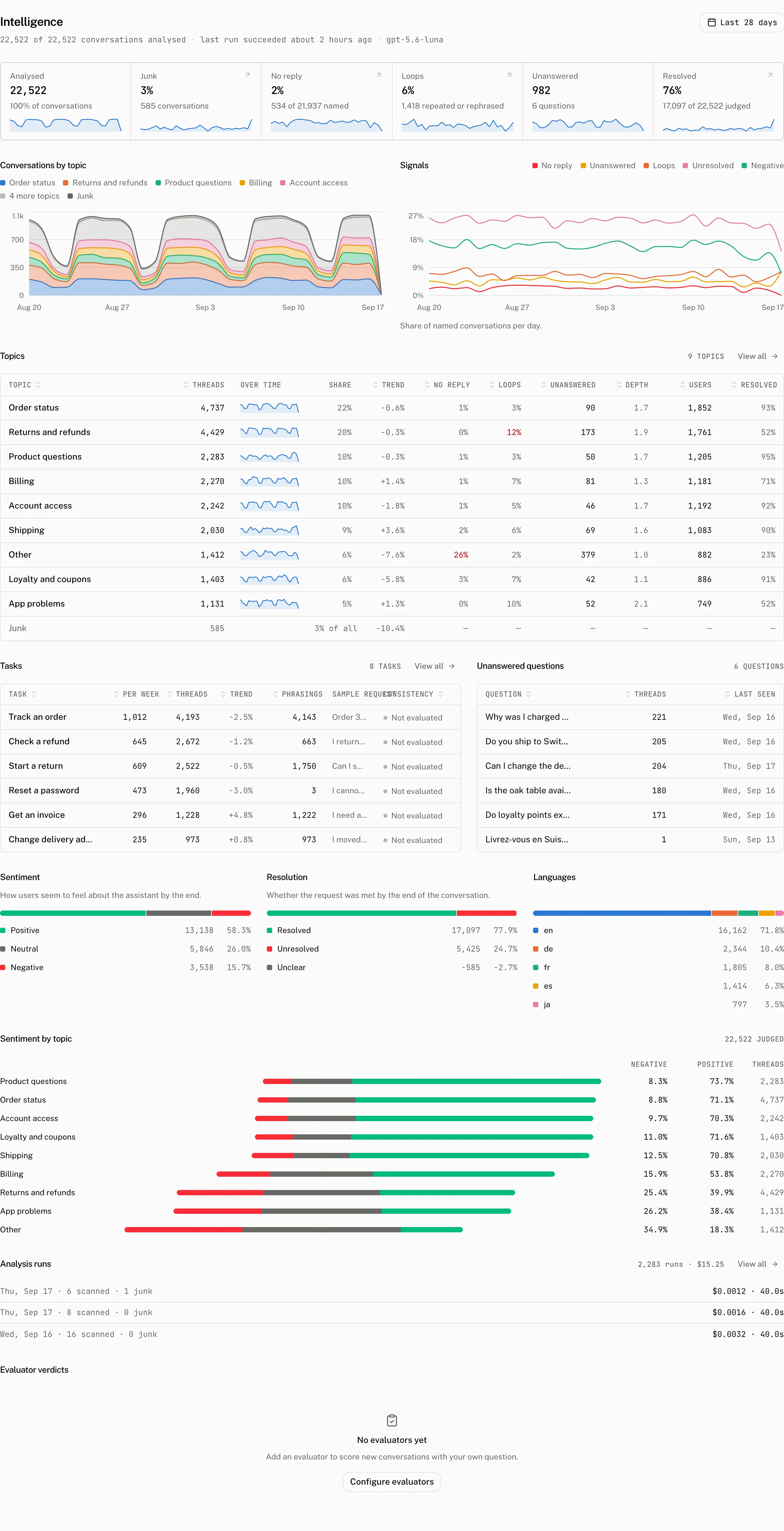
The six tiles
| Tile | What it counts |
|---|---|
| Analysed | Conversations the analysis passes processed in the selected range, junk included. |
| Junk | The share of the conversations the pass scanned that it stored as junk and left out of model classification, with their count. |
| No reply | Named conversations with no assistant messages. |
| Loops | Named conversations with an exact repeat or a rephrased turn. |
| Unanswered | Conversations with an unanswered question. |
| Resolved | Conversations whose analysis records a resolved outcome. |
Conversations by topic puts the analysed conversation count into the selected date buckets by topic. Signals puts the no reply, loop, unanswered, sentiment, resolution, and depth readings into those buckets, so a change can be located before opening the rows behind it.
Reading the Topics pivot
The Topics table is the compact comparison of the named conversation groups. Open a topic to read that topic over the active range.
| Column | Reading |
|---|---|
| Threads | The conversations assigned to the topic. |
| Share | The share reading for the topic. |
| Trend | The topic's trend reading, when the table has one. |
| No reply | Named conversations in the topic with no assistant messages. |
| Loops | Conversations in the topic with an exact repeat or a rephrased turn. |
| Unanswered | Conversations in the topic with an unanswered question. |
| Depth | The mean number of user messages in the topic's conversations. |
| Users | The Users reading for the topic. |
| Resolved | The Resolved reading for the topic. |
| Thumbs down rate | Opens Threads with topic set and feedback=negative. |
A rate that stands out from the page's own mean is shown in its outcome's color. A blank Trend cell has no trend reading.
Tasks, questions, and judged outcomes
Tasks groups repeated requests. Its consistency reading is Consistent, Mixed, or Inconsistent. Open a task to inspect it in the current range. The Tasks table carries a Thumbs down rate that opens Threads with task set and feedback=negative. View all on Topics opens /intelligence/topics, and View all on Tasks opens /intelligence/tasks.
Unanswered questions lists the questions identified by the classifier, with the selected range still in effect. Sentiment by topic compares the topic groups, while the judged mix below it separates Sentiment, Resolution, and Languages. Sentiment is positive, neutral, or negative. Resolution separates resolved and unresolved conversations. Languages is the language mix reported by analysis.
Evaluator verdicts shows the evaluator results alongside the analysis. With no evaluator rules, it reads No evaluators yet and offers Configure evaluators. A configured rule with no results reads No verdicts yet.
Follow a figure to the conversations
Every Intelligence figure is a route into Threads. The link keeps the page's date range and adds the matching filter.
| Figure or detail | Threads filter |
|---|---|
| Topic or topic page | topic |
| Task or task page | task |
| Unanswered question | question |
| Junk | junk |
| Sentiment | sentiment |
| Resolution | resolved |
| Language | language |
| No reply | signal=no_reply |
| Loops | signal=loop |
| Thumbs down rate in Topics or Tasks | The matching topic or task, and feedback=negative |
Threads can combine these with the other filters in its bar. In particular, Ended on the user's message is the separate unanswered filter; it is not the same reading as the analysis's unanswered question signal.
Detail pages and runs
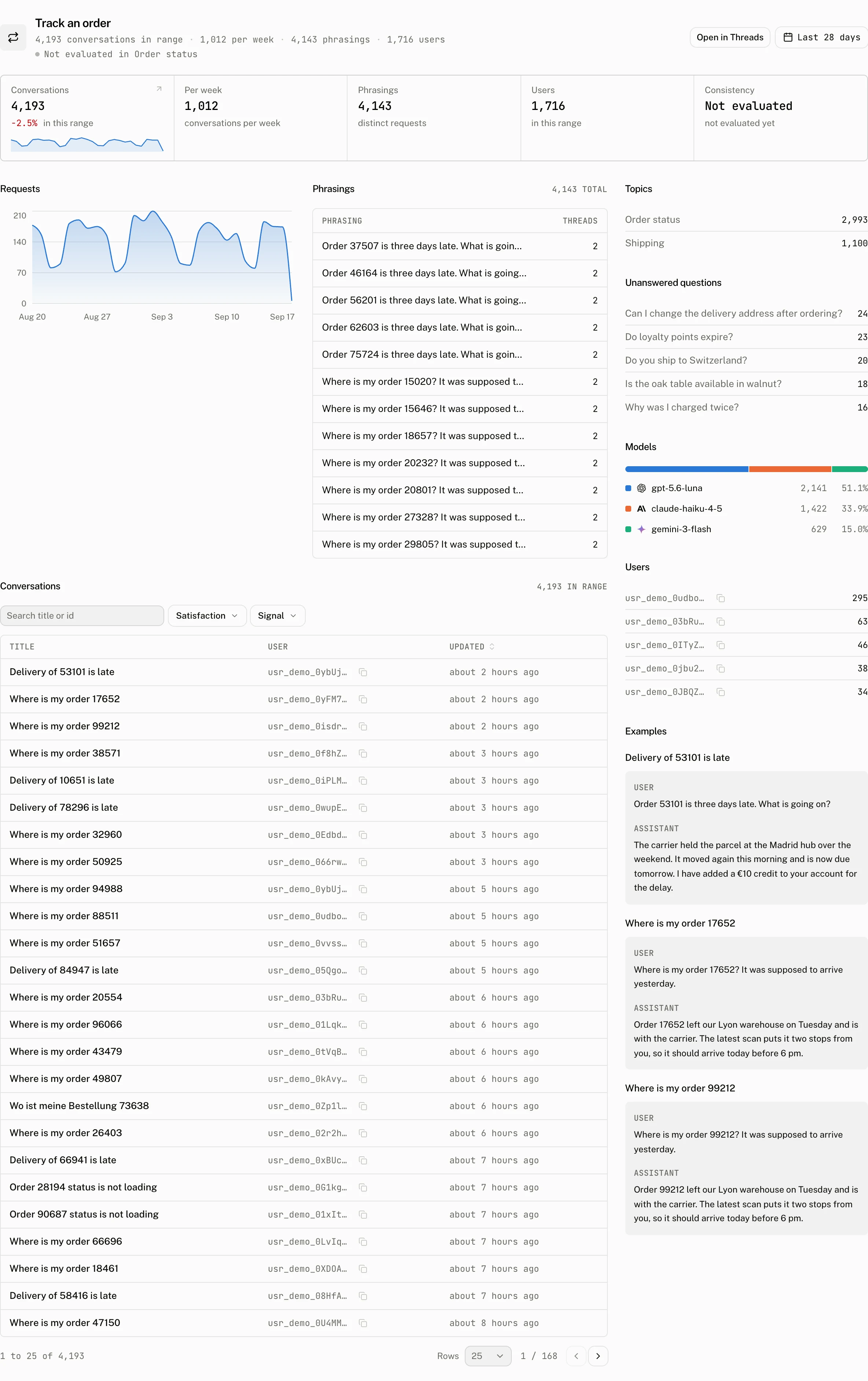
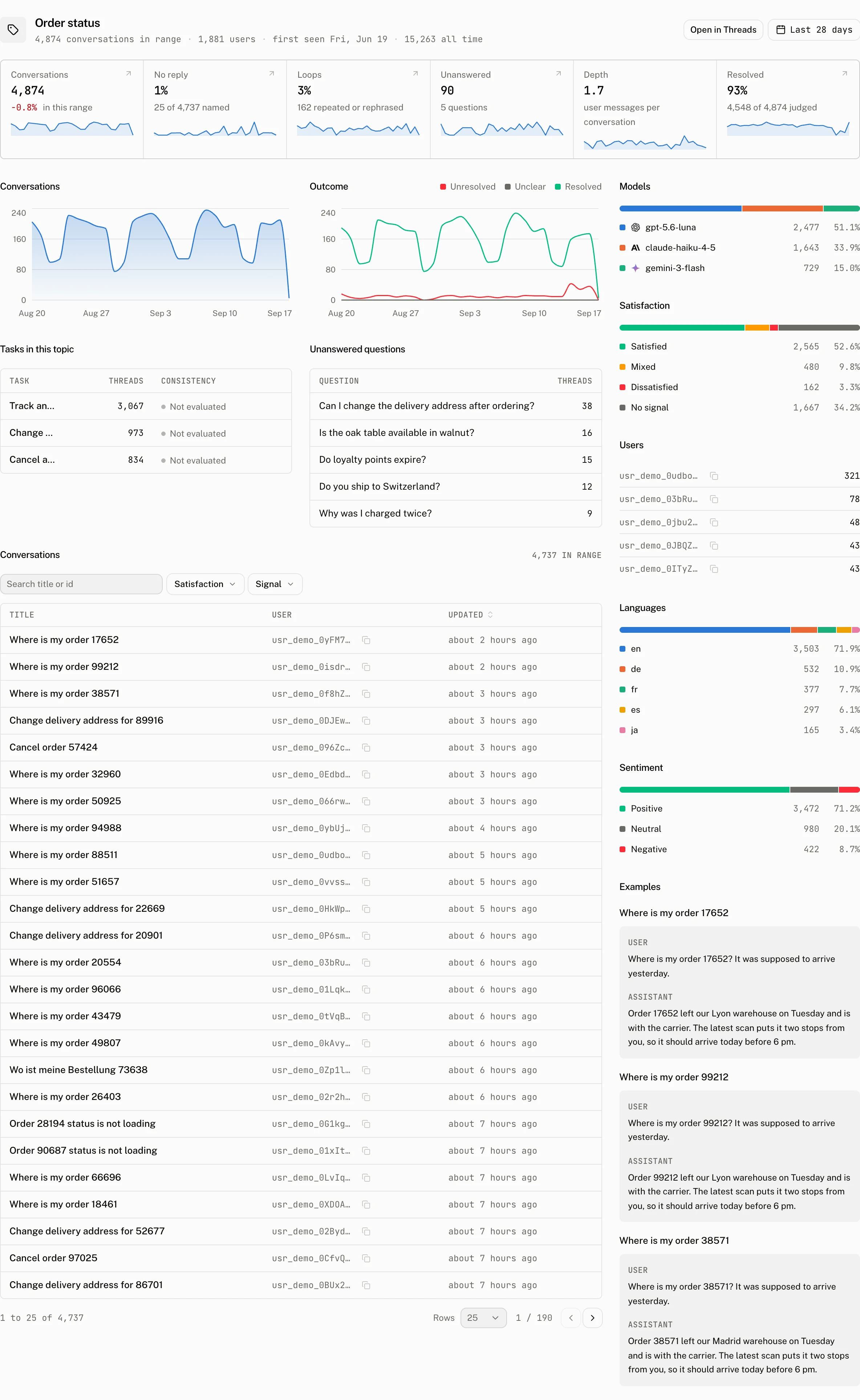
Opening a topic uses the active date range to show that topic's reading and its related Threads. Opening a task does the same for the task, its consistency and its skill.
Open a thread from a topic or task's conversation table and Previous and Next stay within that table's range, filters and sort. Back to topic or Back to task returns to the same table and page.
What went wrong
What went wrong lists the comments end users left on a thumbs down and the notes reviewers left on reviews marked Needs work.
Skill
The analysis drafts a skill name, a one sentence description of when to use it and instructions by reading the conversations and those complaints. A person can edit the draft and press Publish. No LLM provider or assistant is needed to publish.
Update saves later edits. Unpublish withdraws the published skill. A newer draft never replaces published text. The page offers Load draft instead. A backend reads published skills through GET /v1/projects/skills. Create assistant remains a secondary action.
Analysis runs is the ledger for the work behind the page. The summary retains the latest 3 runs and their aggregate run count, failed count, cost, and tokens. All runs opens the runs page, which paginates the analysis-run ledger 50 records at a time. A run row records the day, scanned conversations, junk count, model, and either its cost or status. The settings page's Run now and Re-analyse last 28 days controls queue this work; the worker passes every hour and takes queued requests first.
When the page has no answer yet
Intelligence is available on paid plans. Without it, the page reads: Intelligence requires a paid plan. Upgrade on the Billing page to unlock topic analysis for this project.
Before the first completed analysis, the page reads: No analysis yet. The analysis runs every hour on the provider chosen in Settings; its topics, tasks and signals appear here after the first run.
Troubleshooting
| What you see | Why | What to do |
|---|---|---|
| A topic is missing | The conversation may be classified as junk, or the configured topic ceiling folded new conversations into Other. | Check the conversation in Threads with the Junk filter, then review the classifier settings. |
| A topic has no trend | The table has no Trend reading for that topic. | Compare the topic after later analysis runs. |
| Evaluator verdicts are empty | The project has no evaluator rules, or a configured rule has no verdicts in the last 28 days. | With No evaluators yet, select Configure evaluators to add a rule. A rule that reads No verdicts yet is judged only on the new conversations it samples: check in Settings › Evaluators that it is enabled and that its sampling rate lets conversations through, then wait for new conversations. |